
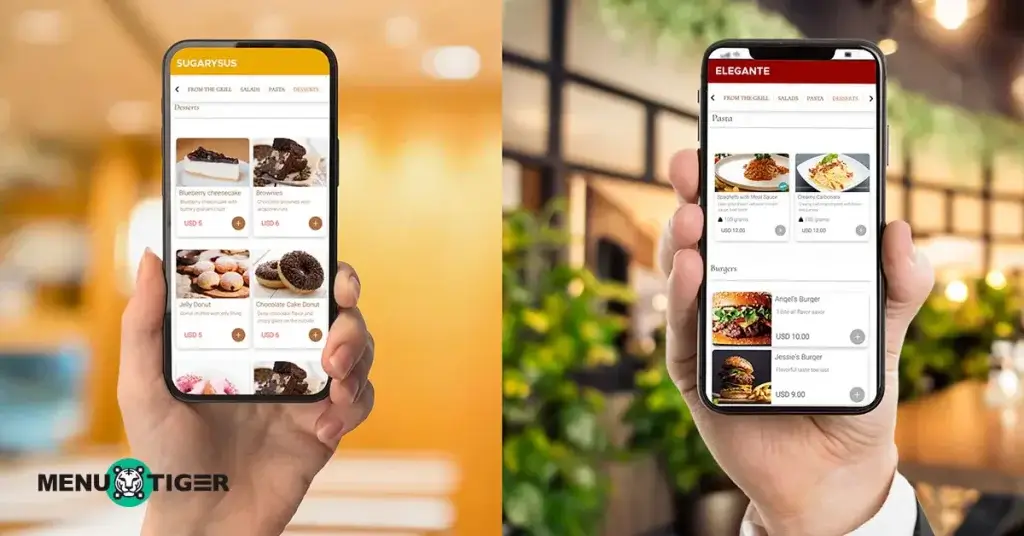
A customer sits down and scans a QR code, but nothing happens.
After a few unsuccessful attempts, they call for help and ask the common question: how to scan a menu QR code?
While QR codes are taking over as a standard feature for modern dining, not every customer is familiar with the process. Some may not know how to find their phone’s scanner, or whether they need to download one.
That’s why adopting tech like this is just the beginning, because the real work is helping customers to use it confidently.
Use this guide as your workplace manual on how to scan a QR menu in various mobile phones, troubleshoot common issues, and make sure that everyone can access your menu with ease.

How to scan a menu QR code on different devices
While phones make it easy to scan QR codes, their steps and available features can differ depending on what device customers are using.
Here’s a complete guide on how to scan a digital menu QR code on each platform.
How to scan a restaurant QR code on iPhone
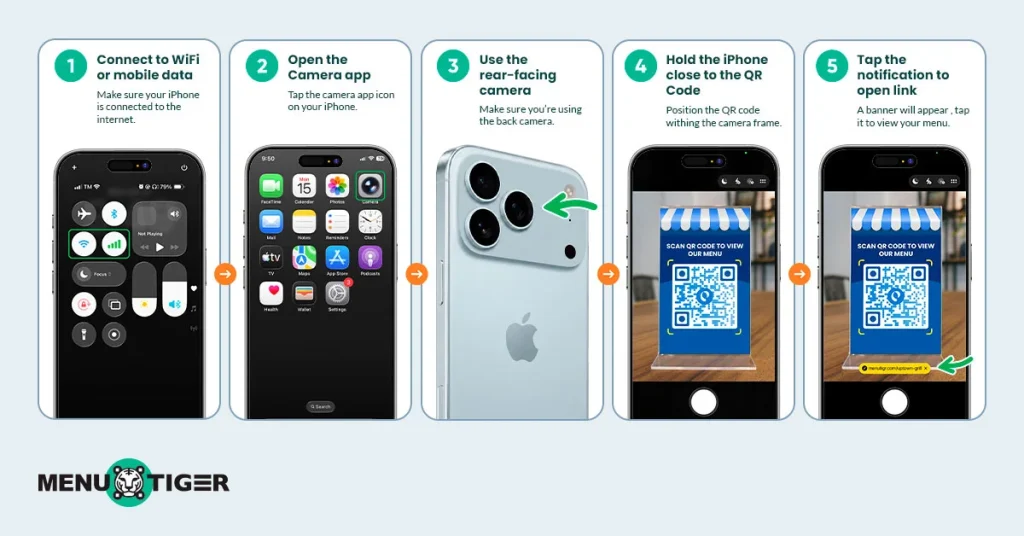
For customers using an iPhone, scanning a menu made it simple because the device comes with a built-in QR code scanner through the Camera app.
But this varies depending on the iOS version the device has.
An iPhone with iOS 11 or higher can scan a digital menu QR code using its built-in camera. Here’s how:
Step 1. Connect the device to a WiFi or mobile data.
Step 2. Open the Camera app.
Step 3. Open the rear-facing camera.
Step 4. Hold the iPhone close enough to the QR code.
Step 5. Tap the notification to open the link to your restaurant menu.
How to scan a QR code for an Android device
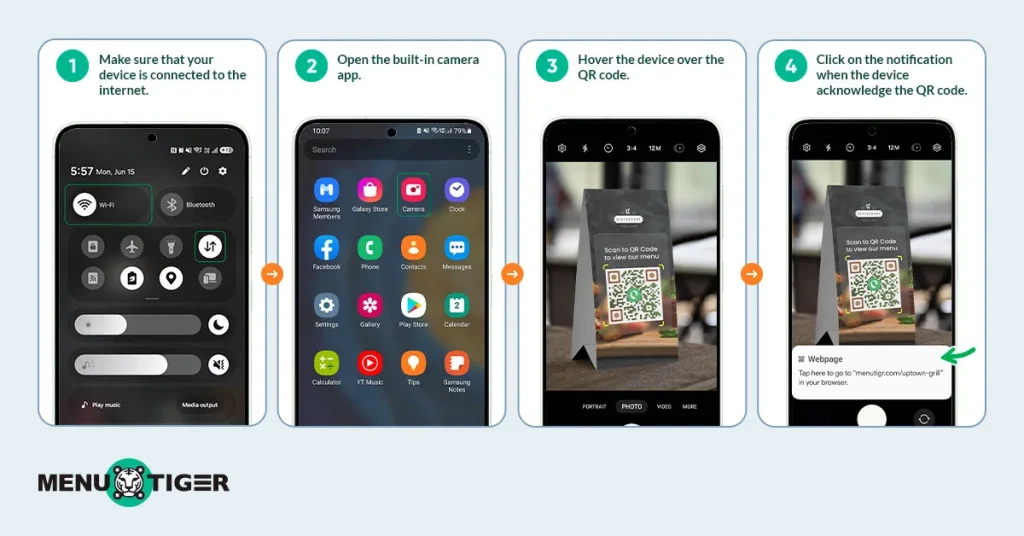
For devices operated by Android 8 (Oreo) and the latest version, they have also built in a scanner for QR codes.
Here’s how to use it:
Step 1: Make sure that the device is connected to the internet.
Step 2: Open the built-in camera app.
Step 4: Hover the device over the QR code.
Step 3: Click on the notification when the device acknowledges the code.
How do you scan a QR code menu in Google Lens?
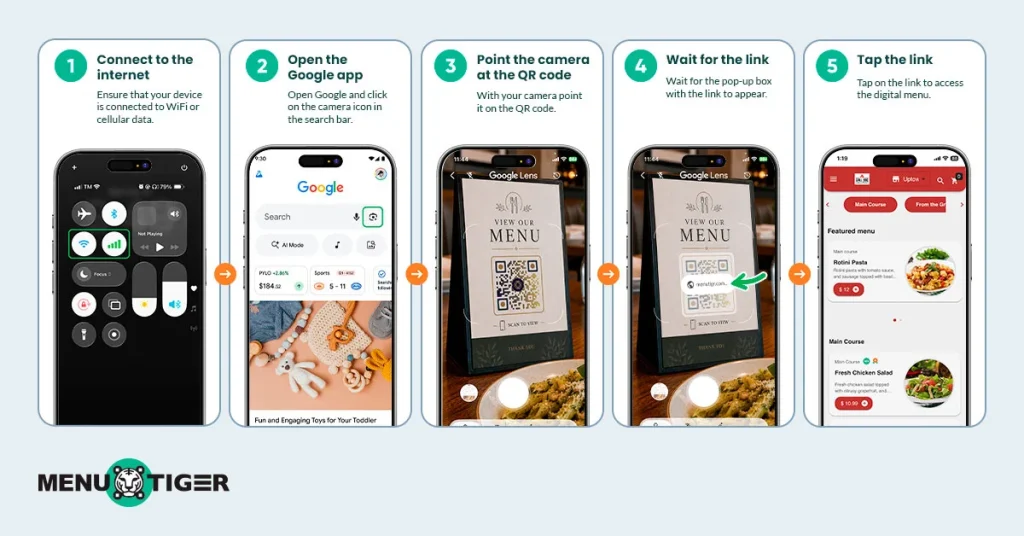
If customers are having trouble with their Camera app, guide them to use Google Lens to scan a menu.
Here’s how:
Step 1: Ensure that the device is connected to the internet.
Step 2: Open Google and click on the camera icon in the search bar.
Step 3: Point the camera at the QR code.
Step 4: Wait for the pop-up box with the link.
Step 5: Click on the link to access the digital menu.
5 common smartphone scanning issues and how to fix them
Scanning a QR code using an Android or iOS device should be fast and seamless, but it can still run into errors.
Below are the common issues customers and restaurants often stumble into, and practical troubleshooting steps to ensure a smooth scanning experience.
1. The camera fails to recognize the QR code.
One of the most frequent issues is when the phone camera does not recognize or detect a QR code at all.
This prevents them from accessing the menu, payment options, or information link. In restaurants, this often results in staff intervention, slower table turnover, or a negative perception of the digital system.
Here’s what you can do to fix it:
- Clean the camera lens to remove smudges or dust.
- Improve the lighting, especially if you have a dim restaurant interior.
- Hold the device steady and align the QR code fully within the frame
- Adjust scanning distances slowly until autofocus locks
2. Poor-QR code quality (blurry, small, or damaged)
Low-resolution printing, glare, or physical damage to your QR code table tents can prevent successful scanning.
When this happens, it creates friction at the first customer touchpoint and can negatively affect the professionalism of your business operations.
This often translates into avoidable service delays and repeated guest complaints.
Here’s what you can do to avoid this:
- Reprint QR codes using high-resolution vector files.
- Make sure to design them with a strong contrast. For example, dark code on a light background.
- Avoid putting it on glossy lamination that produces glare under lighting
- Offer a digital fallback
3. The page does not load after scanning.
A successful scan that leads to a failed or slow -loading page is one of the most damaging issues.
Customers may assume that the restaurant order system is broken even if the QR code itself is functional. This often leads to drop-offs in ordering or staff escalation.
What you can do is:
- Check mobile data or WiFi connection
- Switch between WiFi and mobile data if needed
- Refresh the page after reconnecting
- Reset the network connection
4. A QR scanning feature is enabled or not working.
Some users think that there’s something wrong with the menu app QR codes when their device settings are not fully configured for scanning.
This is a common friction point in mixed environments. What you can do here is:
- Use the Camera app first
- If it does not work, use Google Lens on either device
- Enable camera permissions for scanning
- Update the device’s operating system and camera app
5. Invalid or expired link
Users who encounter dead links often do not retry and switch to staff ordering or ditch the experience entirely.
So to prevent this, you have to:
- Regularly audit all QR destinations for uptime and validity
- Use a dynamic QR code where links can be updated without reprinting
- Implement redirects instead of hard-coded URLs
- Provide immediate escalation channels
Tips on how you can implement a smart QR code menu system properly
While you can troubleshoot these common QR code menu scanning issues, the best approach is to prevent these problems from the start.
When a QR menu system is well-implemented, it minimizes scanning errors and improves accessibility across devices to ensure a smoother experience from the moment guests sit down.
Choose a reliable menu QR code platform.
What makes a successful digital menu experience is its foundation.
Select the right provider that allows you to update menu items in real time, can manage multiple locations if needed, and monitor customer engagement through analytics.
MENU TIGER, for example, offers an all-in-one online menu ecosystem where you can manage your operations across all areas, including QR ordering, in one system. So you don’t have to hop from one app to another.
Reliable systems like this ensure that customers know how to order on a menu QR code easily access menu information and reduce confusion because of outdated prices or seasonal changes.
Optimize your digital menu for mobile devices.
Most diners will use their phones when accessing the menu, and a menu that is difficult to navigate can quickly create frustration.
To avoid that, include these practices on the checklist:
- Use clear categories and types of menu sections
- Make the text readable without the need to zoom in
- Use high-quality food photos
- Keep the loading time fast
- Make sure buttons and links are easy to tap
A mobile -friendly menu naturally improves customer experience and eventually increases their likelihood to explore more items.
Train staff to assist customers.
While smartphones are widespread, not everyone is familiar with QR codes or navigating digital ordering menus.
That’s where your staff needs to pay attention. They should know:
- Explain how to scan a QR code
- Troubleshoot common scanning issues
- Provide alternative menu options when needed
- Answer questions about digital ordering features
Provide alternative access options.
Though QR codes are at their peak for a modern dining experience, some customers may still have experience device limitations or accessibility concerns.
In order not to disrupt the ordering workflow, always have printed menus available upon request, especially during testing.
Staff should also be on standby to assist customers with their orders.
These backup options ensure that customers can still view the virtual menu even if they encounter scanning difficulties.
Create a seamless scanning experience for every customer
Implementation of restaurant technology like QR code menu systems goes beyond properly displaying or choosing the right provider.
But answers a critical question: How to scan a menu QR code?
This signals convenience, ease, and efficiency of the system for both customers and staff. If both can scan the code instantly and access the menu within seconds, the technology fulfills its purpose.
So, when creating a seamless scanning experience, not only will customers know how to scan them, but restaurants need to pay attention to several factors that make sure that access to your menu is not disrupted.
Ultimately, a successful QR code menu system is not measured by the tech itself but by how effortlessly customers can use it.
When guests can scan, browse, and order without being interrupted, you can benefit from this technological strategy while delivering a modern and convenient dining experience for them.