
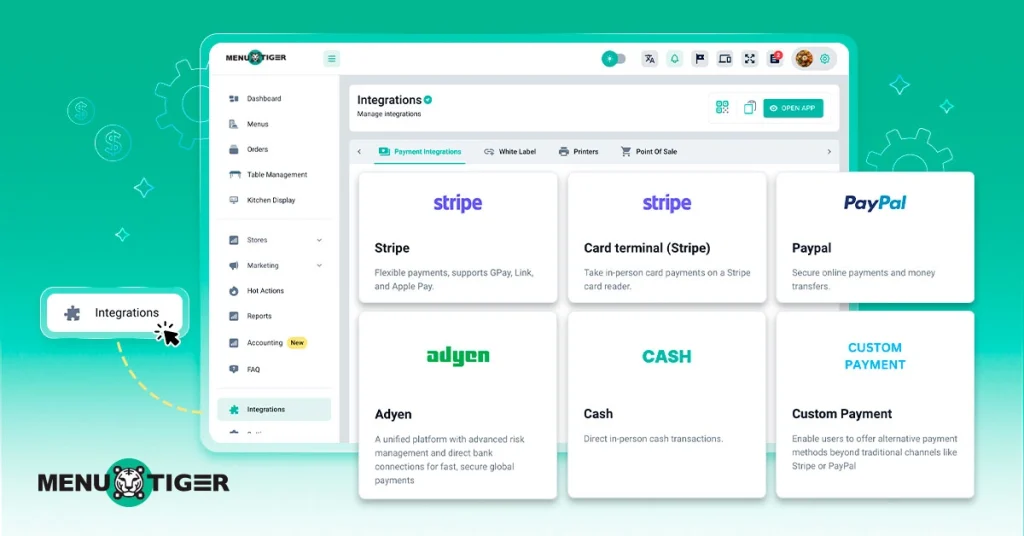
MENU TIGER connects to six payment integrations: Stripe, Card Terminal (Stripe), PayPal, Adyen, Cash, and Custom Payment.
Together, they let you take online payments, charge cards in person, record cash, and set up your own payment arrangements. You manage all of it, along with your orders, in one place.
Quick overview
| Stripe: Take credit and debit cards, Google Pay, Apple Pay, and Link for online orders. Card Terminal (Stripe): Charge cards in person with a Stripe card reader. PayPal: Let customers pay for online orders with their PayPal account. Adyen: Process online payments through an international provider. Cash: Take payment from customers at the restaurant. Custom Payment: Offer other arrangements, like Pay Later or Pay at Cashier. MENU TIGER also supports QR code ordering. Customers scan a code, browse the menu, place an order, and pick how they want to pay, all on their phone. |

What is a restaurant payment integration?
A restaurant payment integration connects your ordering system or POS to payment providers, card processors, and digital wallets.
The customer pays during the order, the system sends the payment to the provider they chose, and the payment status gets recorded. This helps your staff track payments and match them to orders.
Why offering multiple restaurant payment methods matters
There are a lot of ways to pay, which is through digital wallets, credit cards, or cash. When you offer several options, people can pay the way they prefer. That means:
- Faster checkout. Customers use a method they already know.
- Fewer problems. People are less likely to leave at checkout if their preferred payment method isn’t available.
- More customers served. You can take cards, wallets, cash, and other payment methods.
- Easier payment handling. Staff manage all payment types in one system.
Restaurant payment integrations available in MENU TIGER
Stripe: accept cards, Apple Pay, and Google Pay
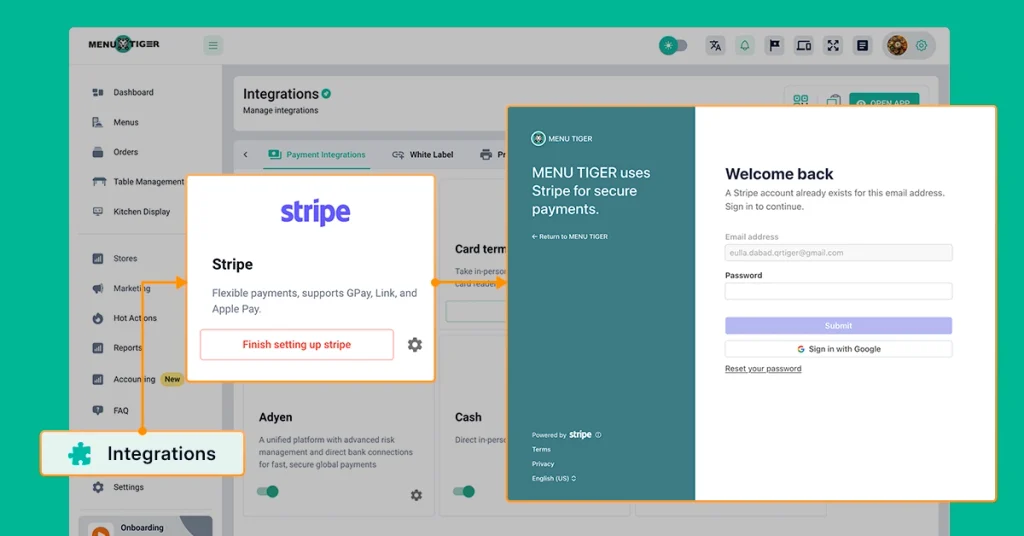
Guests can pay with a credit or debit card. They can also use Google Pay, Apple Pay, and Link, so they don’t have to type in card details.
How to set up Stripe
- Go to Integrations > Payment Integrations and click Connect on Stripe.
- Sign in to your Stripe account or create one.
- Follow Stripe’s steps to finish setting up your account.
- Go back to MENU TIGER and check that Stripe shows as connected.
Card Terminal (Stripe): take in-person card payments
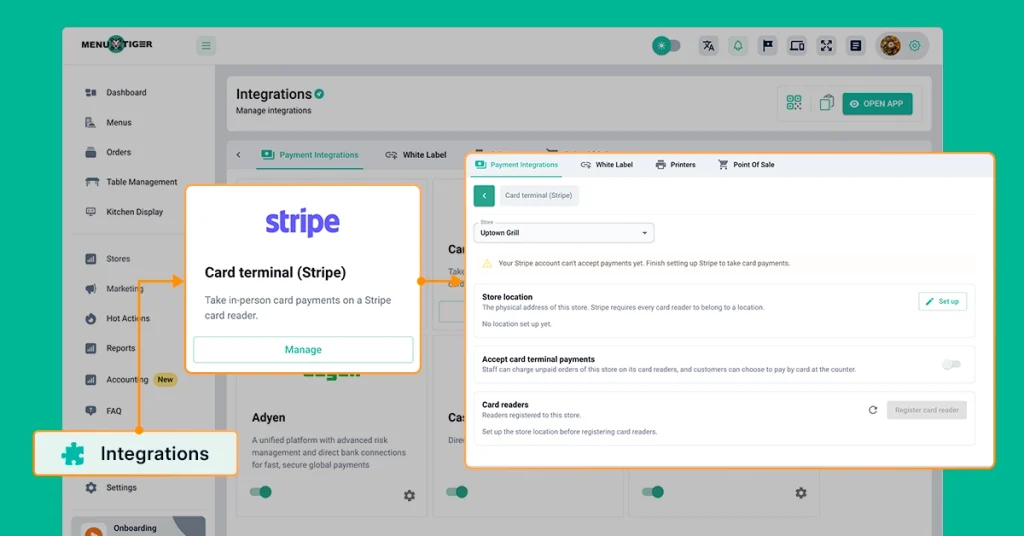
Staff can take card payments in person with a Stripe card reader. When a guest is ready to pay, staff charge the unpaid order through the reader.
How to set up Card Terminal (Stripe)
- Go to Integrations > Payment Integrations and select Card Terminal (Stripe).
- Pick your store from the Store dropdown.
- If you see a “Can’t accept payments yet” warning, finish your Stripe account setup.
- Under Store location, click Set up and enter your restaurant’s address.
- Turn on Accept card terminal payments.
- Under Card readers, click Register card reader and follow the steps.
PayPal: let guests pay with their account
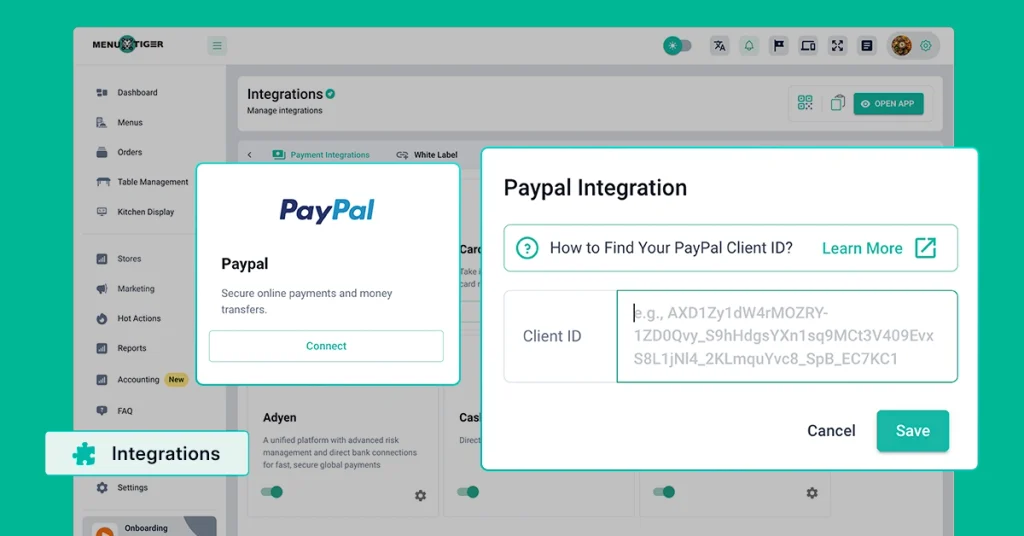
Guests with a PayPal account can use it at checkout instead of typing in card details.
How to connect PayPal
- Go to Integrations > Payment Integrations and click Connect on PayPal.
- Open the PayPal Developer Dashboard and copy your Client ID.
- Paste the Client ID into the matching field in MENU TIGER.
- Click Save.
Adyen: process international online payments
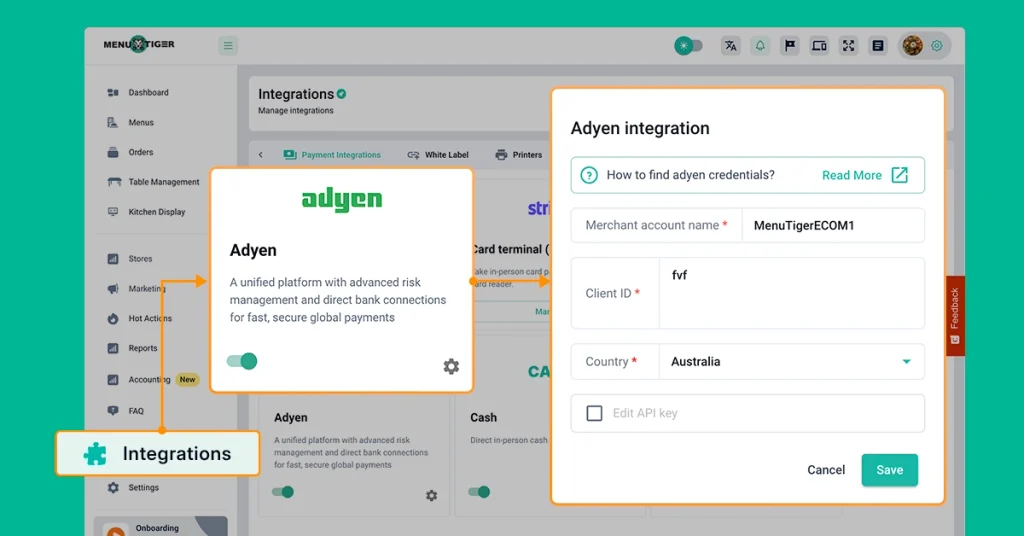
Adyen is a payment platform that handles payment processing, risk checks, and connections to banks. It works well if you get online orders from customers in different countries.
How to connect Adyen
- Go to Integrations > Payment Integrations and click Enable on Adyen.
- Enter your Merchant account name and Client ID, then choose your country from the dropdown.
- Enter your API key. If you can’t edit the field, tick the Edit API key checkbox first.
- Click Save.
Cash: collect payment in person
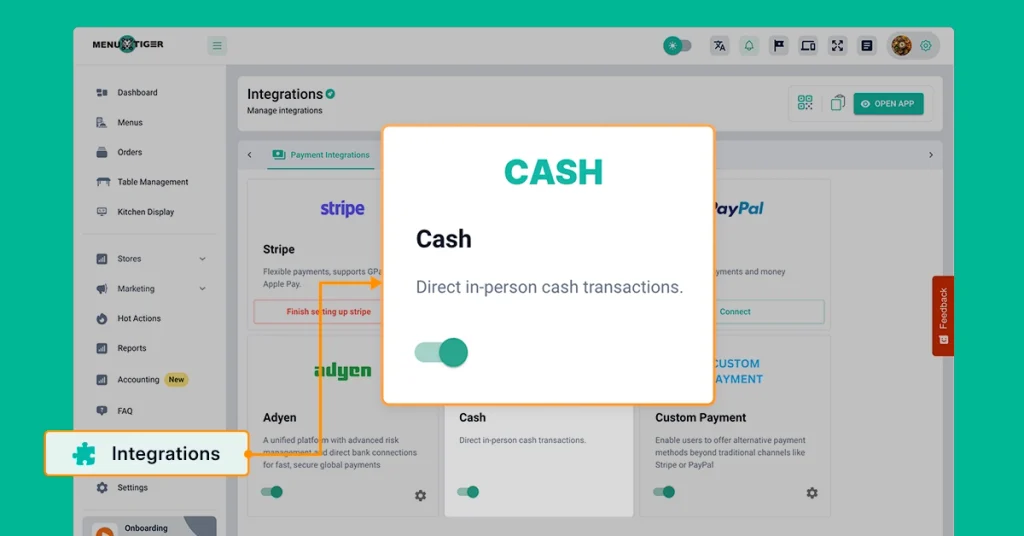
Cash lets you collect payment in person, without sending anything through an online payment gateway. Guests paying at the counter or settling a dine-in bill with cash can choose it at checkout.
How to enable cash payments
- Go to Integrations > Payment Integrations.
- Find Cash and enable it.
Once enabled, customers can select cash as their payment method when placing orders.
Custom Payment: add your own options
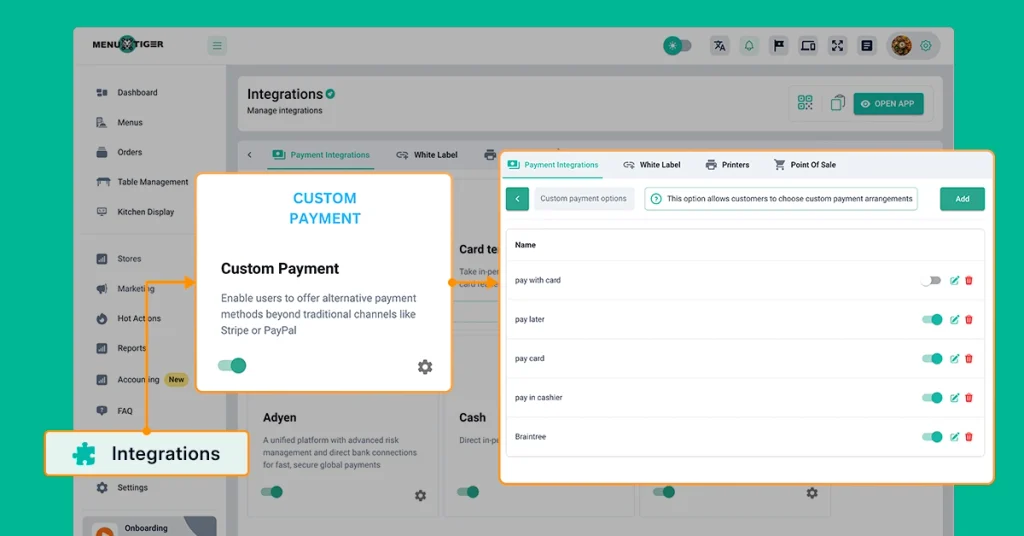
Use this for arrangements your payment gateways don’t cover, like Pay Later or Pay at Cashier. It gives you more say in how and when customers pay their bills.
How to set up custom payment options
- Go to Integrations > Payment Integrations and select Custom Payment Options.
- Click Add and type the name of the option, such as Pay Later or Pay at Cashier.
- Click Save.
- Use the toggle next to each option to turn it on or off for customers.
Tip: Click the pencil icon to rename an option, or the trash icon to delete it.
How QR code payment for restaurants works in MENU TIGER
MENU TIGER’s QR code ordering supports paying at the table. Customers can do everything from their phone.
Here’s how the process works:
- Scan the QR code. The customer scans the restaurant’s QR code with their phone camera to open the digital menu.
Here’s how to scan a menu QR code if they need help.
- Browse the menu. They look through the dishes, descriptions, and prices.
- Place an order. They pick their dishes, change them if options are available, and submit.
- Choose a payment method. At checkout, they pick from the payment options the restaurant has turned on.
- Pay. They follow the steps for their chosen method, whether that’s paying online or paying in person.
Offer more restaurant payment methods with MENU TIGER
MENU TIGER’s six payment options cover online cards and wallets, in-person card readers, cash, and custom arrangements, all managed from one dashboard.
Your guests already have a preferred way to pay. Make sure your restaurant accepts it. Sign up for MENU TIGER today and start taking payment your way.